
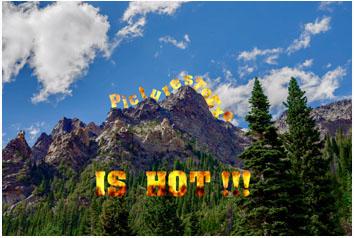
Just a quick demo of some capabilities of PicturesToExe which are not found in other presentation slideshow products. Text circling a rotating planet (Jupiter in this case) is something which can be accomplished in Photoshop Extended in the 3D Video section, but it results in a video being created. The text can't be manipulated beyond what is done in the video. The colors on the front and back of text can't be different and individual characters can't be in different fonts, etc. With PicturesToExe this is all possible and much more! PTE is vastly more versatile for doing this than even Photoshop Extended. This demonstration created in PicturesToExe 9 demonstrate 3D animated and orbiting text showing both front and back of the text - demonstrating color and different font characterists. It also demonstrates multiple layers and masking as well as use of RGBA alpha channel and chroma key extraction features. Many of these capabilities will not be used in the average slideshow, but are there for those who wish to experiment and try new things with this magnificent product.
You may only provide a review once you have downloaded the file.
There are no reviews to display.