Skip to content
View in the app

A better way to browse. Learn more.

Slideshowclub.Com

A full-screen app on your home screen with push notifications, badges and more.

To install this app on iOS and iPadOS
  1. Tap the Share icon in Safari
  2. Scroll the menu and tap Add to Home Screen.
  3. Tap Add in the top-right corner.
To install this app on Android
  1. Tap the 3-dot menu (⋮) in the top-right corner of the browser.
  2. Tap Add to Home screen or Install app.
  3. Confirm by tapping Install.

New Zealand 2.1

(2 reviews)

1 Screenshot

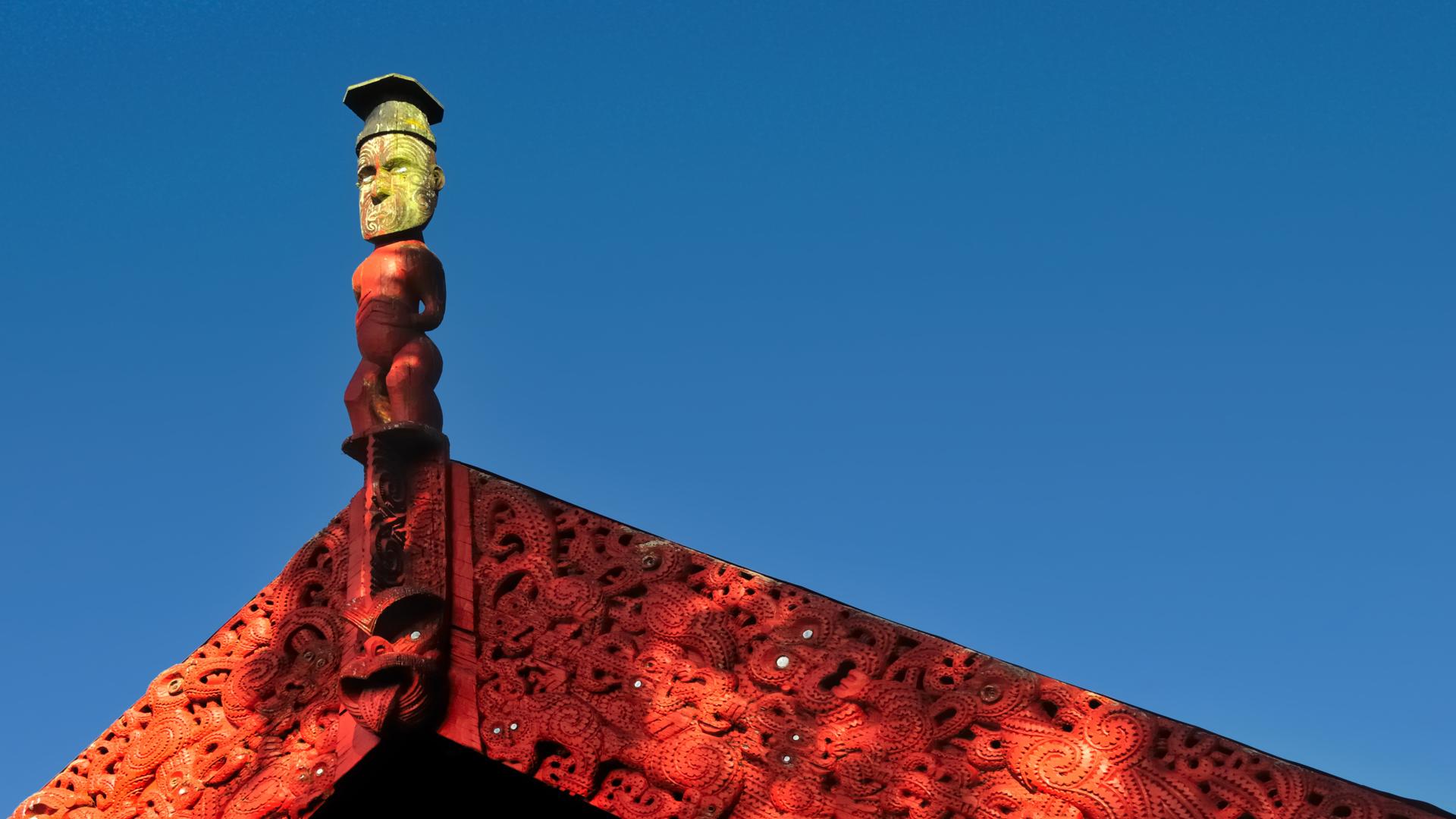
This is a simple slow fade style slideshow produced for my family, featuring photos taken on a once of a lifetime trip to New Zealand.  

What's New in Version 2.1

Released

I took all images into LR and tweaked them, removed a few dust spots, etc. I use jpgMini Pro as part of my export approach and as a result, the file size of the show is now only 22MB (from 44MB previously.)

User Feedback

Join the conversation

You can post now and register later. If you have an account, sign in now to post with your account.

Guest
  • This will not be shown to other users.

  • Your review Required
    Add a review...

   1 of 1 member found this review helpful 1 / 1 member

Nicely done Mark. Brought back some memories of our trip to NZ. We were there in the spring so we didn't get the colourful trees, but we did get colourful flowers including millions of lupines.

   1 of 1 member found this review helpful 1 / 1 member

Mark, 

your selection of picts were great and manual control allowed me to study them,

thanks

ken

Account

Navigation

Search

Search

Configure browser push notifications

Chrome (Android)
  1. Tap the lock icon next to the address bar.
  2. Tap Permissions → Notifications.
  3. Adjust your preference.
Chrome (Desktop)
  1. Click the padlock icon in the address bar.
  2. Select Site settings.
  3. Find Notifications and adjust your preference.