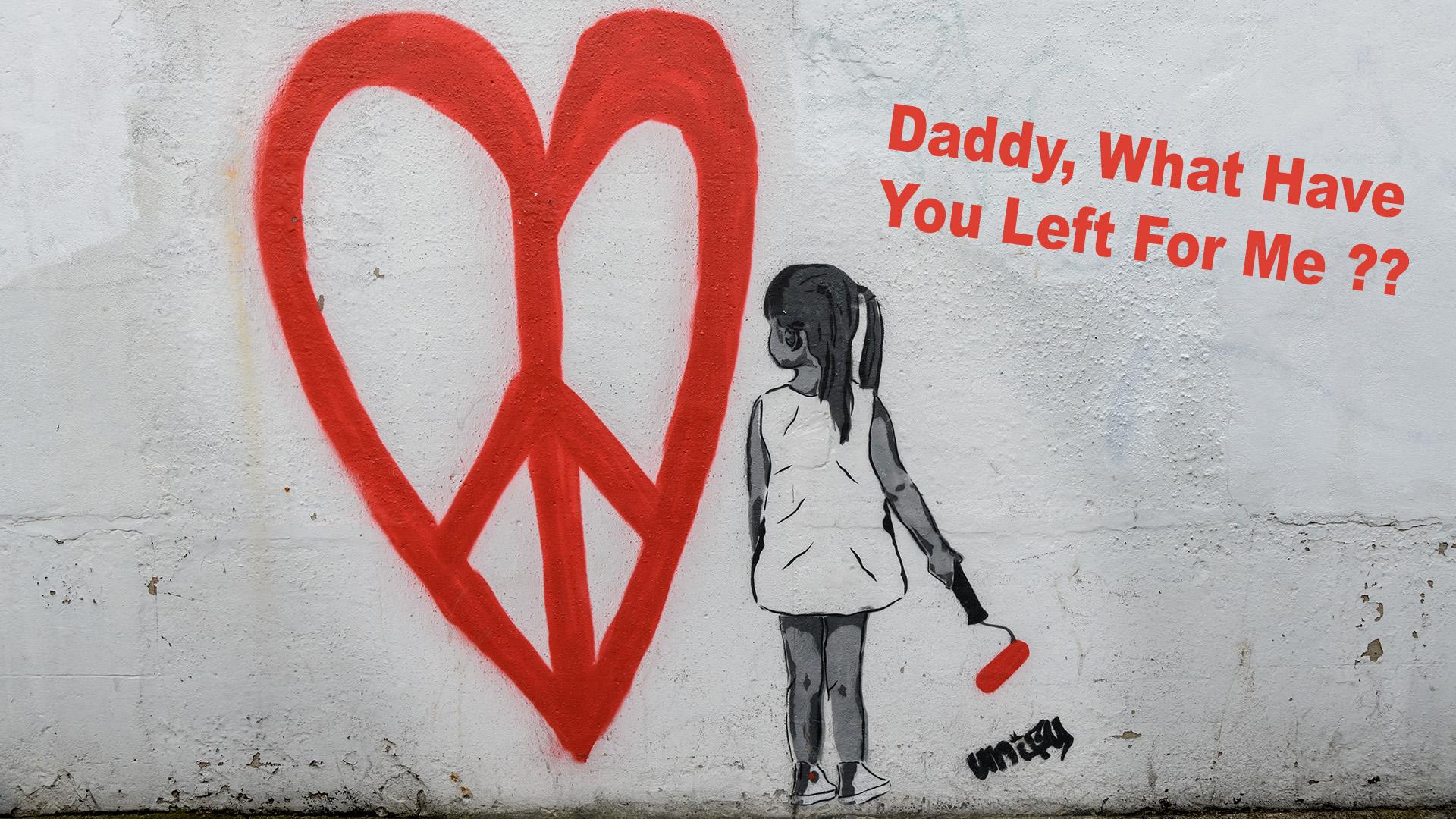
Scots_quine January 8, 20197 yr review_636 Report Author stats Not sure I got the message nor understand it. I cannot marry up the first set of mountain images in colour with the second set of mountains + churches. The narration was very good although the rhyming was a bit suspect in some bits. And I'm also not sure what the description means 'the moment every parent dreads', even after I watched the show. I much preferred the colour slides to the infra-red ones. The images were lovely but the message behind them went totally over my head! Response from the author: Thank you for your comments, The colour images at the beginning represent the girl as a youngster as she gets more mature she starts questioning the world she lives in hence the black and white images, then it changes to the churchyard images as she questions why there is so much hatred and killing in this world, at the end she wants her father to explain her inheritance, it should have been better.
Jim R January 6, 20197 yr review_633 Report Author stats 1 of 1 member found this review helpful 1 / 1 member Well done, creative composting handled very well. Use of B&W helps drive home the message. Photography excellent and music works well Response from the author: Thank you Jim R, very pleased you enjoyed the sequence

Join the conversation
You can post now and register later. If you have an account, sign in now to post with your account.