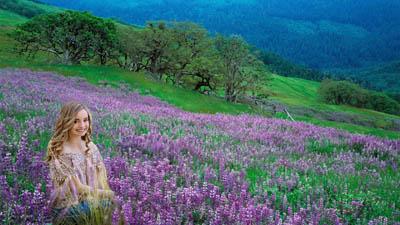
Tomcatred55 January 2, 20197 yr review_626 Report Author stats 0 of 1 member found this review helpful 0 / 1 member I think seeing what the "artist" is painting as the background works much better than some of the other ones you've done (like the wolf and the snowing background). I still think that it would be better if the painting was larger in the picture space (as I mentioned in one of your other ones like this) and it is a little unnatural how much area the brush covers in one go. That said it would probably be annoying to see the brush constantly moving to the pallet board all the time. We are all different but personally I wouldn't make so many sequences using the same technique like this, I prefer to try new things all the time. Response from the author: A review would be much more meaningful if you actually had a clue how the software works. I would suggest doing some research and learn about the possible before commenting. Your comments reflect your opinions about things you really don't understand well - but it will be a learning process for you...

Join the conversation
You can post now and register later. If you have an account, sign in now to post with your account.