
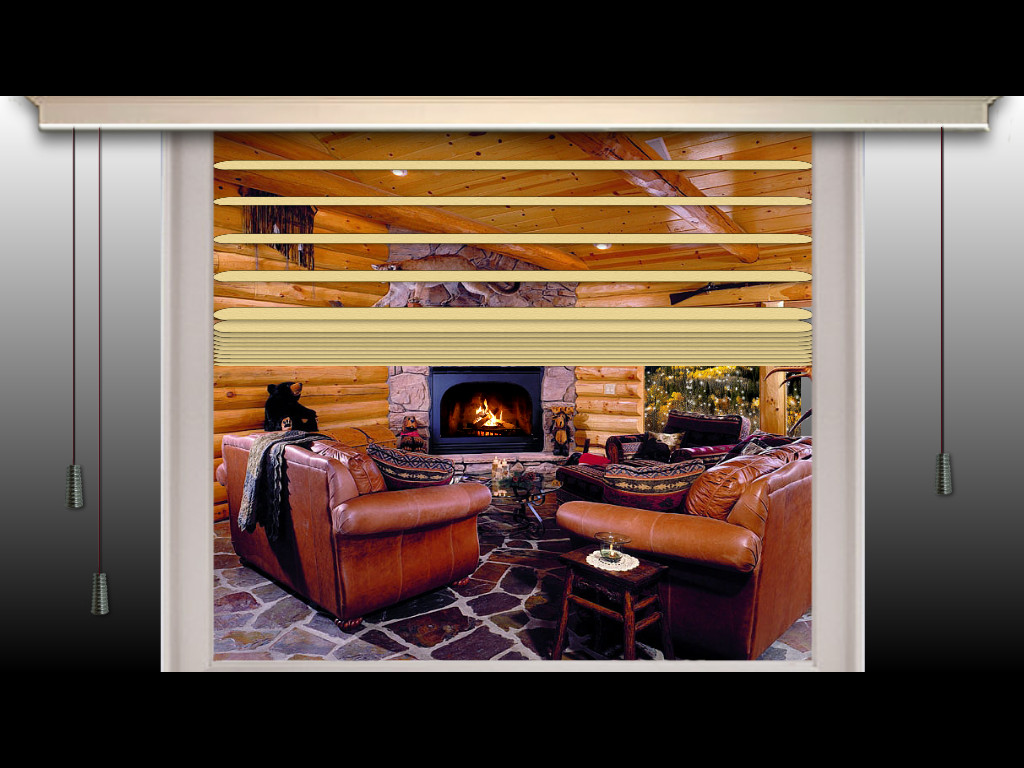
A demonstration of why I believe PicturesToExe is the finest product of its type, not only for conventional slideshows, but also for creative animation presentation. This demo includes the following: Gradual build-up of falling snow, cloud movement, transparent cube, elliptical object orbit, Venetian blind effect, flying bird, text effects, alpha channel video, multiple layers, masking, rubik's cube animation, geometrical construct, etc. Both web safe Windows PC and native MacIntosh executable formats presented. PTE has a feature known as "web safe" where a digitally signed executable portion is accompanied with the data portion. Download the zipped PC archive and extract both files into a single folder and run the exe file. The MacIntosh version may be run by simply Ctrl Clicking and ignoring the warnings. No antivirus or warnings of any kind with this absolutely trustworthy technology! Congratulations Wnsoft!! Job well done!
You may only provide a review once you have downloaded the file.
There are no reviews to display.