
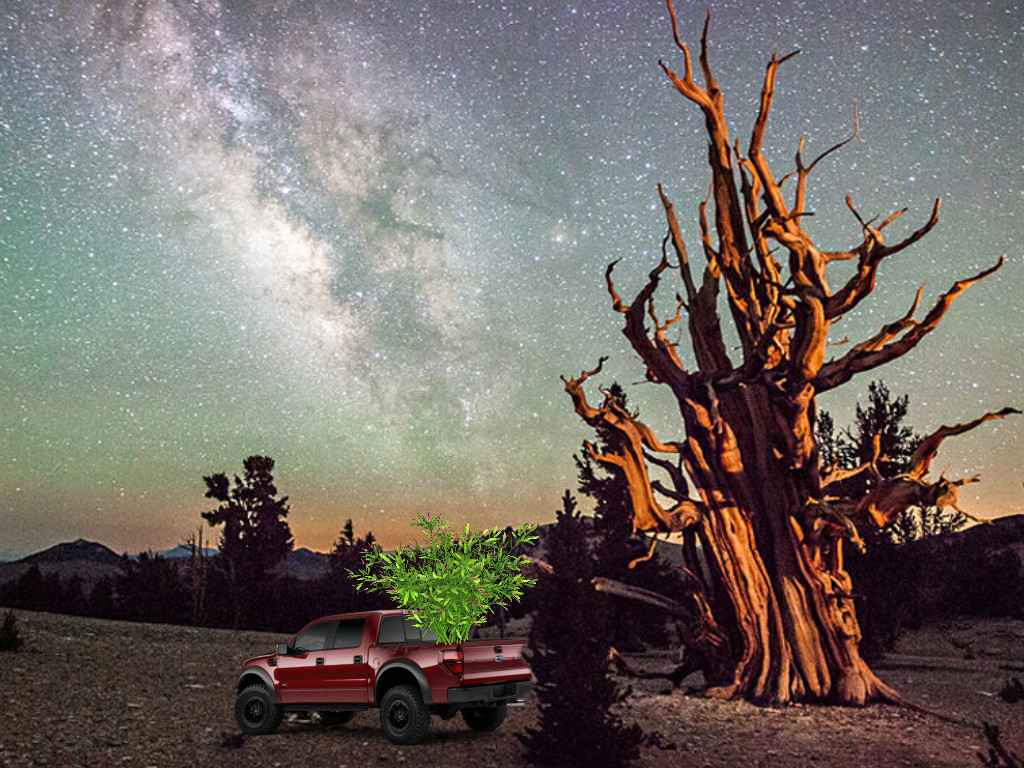
A quick demonstration of the use of an alpha matte as a mask which reveals a color motion video. The green flowering plant in the back of the moving pickup truck is in motion. The motion of the plant and flowers in the breeze was created originally as an MOV video with an embedded alpha channel. Since PTE only directly supports RGBA avi video with embedded alpha channel, the original was taken into the freeware VideoPad Video Editor where high brightness and contrast with gamma adjustments were used to create a black and white version of the video. All transparent areas were made black while the flowering plant and flowers were made pure white. This file was then output in AVI format and became the pseudo alpha matte. The original mov with embedded alpha channel was also output as a color avi without the alpha channel. The pseudo alpha matte was used as the mask playing the color avi video and resulting in complete transparency for overlay on the still image backdrop. This approximately 13 second video shows the green plant placed in the back of a PNG pickup truck traveling across the screen. PNG files were used for motion on the truck wheels and a duplicate PNG portion was used to layer the tree which the truck passes behind. Use the keyboard ESC key to break the looped demo when desired.
You may only provide a review once you have downloaded the file.
There are no reviews to display.